Using Claude Code to Customize My Ubuntu Desktop

AI is Writing Code. What About User Settings?
There's been a lot of talk about AI writing code - generating functions, building apps, refactoring codebases. But I haven't seen much discussion about using AI to configure your own system.
I was setting up a fresh Ubuntu box today and wanted to make the top bar bigger. Simple request, right? The minute I tried to do it, I couldn't find a UI setting for it. Five minutes in, I was neck-deep in CSS files, gsettings schemas, and Stack Overflow threads from 2015. I could already see it coming - this change was going to take my whole afternoon. I was about to give up and live with the defaults.
But I tried something different this time: I asked Claude Code for help. It worked. I still needed to review and validate each step to feel confident about what was happening, but I didn't need to actually do the work myself.
A Disclaimer: This Shouldn't Be This Hard
Before I go further, let me be clear: I still don't believe I should need to go through this ordeal to implement such a simple change. The fact that GNOME makes it so absurdly hard to adjust the top bar size - requiring extensions, custom theme directories, CSS imports, and shell reloads - is kind of ridiculous. There's probably an easier way to do this that I just don't know about as a newbie to Ubuntu and GNOME Shell.
But here's what happened: I was setting up a new Ubuntu box today, wanted a bigger top bar, and just tried asking Claude Code for help. It worked. I just had a problem and used the tool that was available. As a guy with a hammer, everything seems like a nail, even screws. For me, coming to this fresh, the AI-assisted approach actually felt like the easier way - mostly becasue I could't find a simpler way by googling for a few minutes and clicking around in the systems settings.
Now let me share how it went down.
The Problem: I Want a Bigger Top Bar
I just set up a fresh Ubuntu 24.04 box, and the top panel felt too small. I had to make an effort to read the time and date. I do tend to have the laptop screen a little further away on my desk, so this was mostly a personal scenario where I needed to make the top bar just a little bit bigger than the default. I wanted larger fonts and bigger icons. Simple enough, right?
I first tried the system appearance settings, nothing. Looked for other types of preferences, nothing. Right-clicked on the top bar hoping for options, nothing. Went to Google and immediately got references to install the user-themes extension and start editing CSS files. I wasn't interested in spending my afternoon reading GNOME Shell documentation.
First Attempt: The CSS-Only Approach
I asked Claude Code to help me increase the top bar font size. It did some web research and came back with two approaches. I could edit the system theme directly by modifying /usr/share/gnome-shell/theme/Yaru/gnome-shell.css, or I could create a custom user theme in ~/.themes/ that inherits from the system theme. The first option was straightforward but had a problem: system updates could overwrite my changes. The second option was better, but it required installing the "User Themes" GNOME extension.
The Research Phase: Is User Themes Safe to Install?
Here's where Claude Code's research capabilities became valuable. I asked it to check if the User Themes extension would work on Ubuntu 24.04. It searched the web and found that the extension had known compatibility issues during Ubuntu 24.04's beta, and there were reports of it not working properly with GNOME 46. But it's an official GNOME extension, not some random third-party thing.
This helped me make an informed decision. I could see that it's maintained by the GNOME team (originally by Giovanni Campagna), the issues were from the beta period, and it seemed worth trying on the stable release. So I decided to install it.
A Note on Trust and Permissions
Throughout this process, I maintained a specific boundary: I don't let Claude Code write system settings directly, but I'm comfortable letting it read them (with manual approval for each command).
For example, Claude Code would suggest a command like gsettings get org.gnome.desktop.interface gtk-theme, I'd review it and run it myself, and then it could use that information to build the right configuration. This felt like a good balance. I'm not blindly trusting an AI to modify my system, but I'm also not doing all the research and file manipulation manually.
The Solution: A Template-Based Approach
Once I had the User Themes extension installed, Claude Code's first instinct was to just apply the fix directly. But that's not what I wanted. I needed to be able to tweak this, try different values, and reuse this approach on another system when needed. So I asked it to help me prepare a template instead.
Here's where it got interesting. Claude Code initially tried to hardcode everything, assuming I was using the default Yaru theme. But I'd already changed my theme to Yaru-blue. I had to actively push it to fetch my actual theme setting first and build the right base CSS to extend from. This wasn't something it did on its own accord - I had to direct it to make the solution dynamic and not tied to default values.
After some back-and-forth, we ended up with a CSS template that uses a placeholder:
@import url("/usr/share/gnome-shell/theme/{{CURRENT_THEME}}/gnome-shell.css");

#panel {
  font-size: 1.2em;
  height: 2.4em;
}

#panel .panel-button .system-status-icon {
  icon-size: 1.3em;
  padding: 0 8px;
}
That {{CURRENT_THEME}} placeholder was the key. Then it wrote an installation script that detects my current GTK theme using gsettings, replaces the placeholder with the actual theme name (like "Yaru-blue"), creates the ~/.themes/galileo/gnome-shell/ directory, copies the processed CSS there, and applies the theme. It also generated full documentation and added everything to my user-settings repository with proper indexing and organization.
My Part: The Tweaking and Iterating
The only thing I did manually was edit the template CSS file to find values that felt right. I tweaked the font size, the panel height, and the icon sizes (experimented until they looked balanced). This was actually the fun part - I just edited one file and reran ./install.sh to see the changes. No searching for config files, no worrying about breaking things.
The Result: A Reusable System
Now I have a custom GNOME Shell theme that looks exactly how I want, a script that will recreate it on any new machine, a template I can easily adjust if I change my mind, and documentation so I remember how this works in 6 months. If I switch to a different Yaru variant (say, from Yaru-blue to Yaru-dark), I just rerun the install script and my customizations automatically apply to the new base theme.
What This Means for Open Systems
This experience reinforced something important: open systems paired with AI assistants become dramatically more accessible.
Linux has always been customizable. The problem was never "can you do this?" - it was "is it worth the time to figure out how?" For most tweaks, the answer was no.
But with Claude Code, research happens in seconds not hours, you get working code instead of just documentation links, the solution is personalized to your system (detecting your theme, creating scripts, etc.), and you maintain control while offloading the tedious parts. I didn't need to become a GNOME Shell theming expert. I just needed to know what I wanted, and I let Claude Code handle the implementation details.
The Workflow That Worked
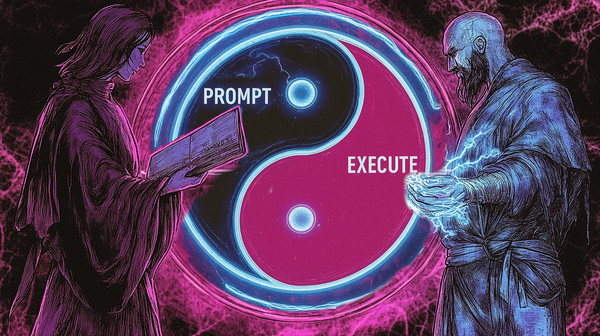
Here's the pattern that emerged: I described what I wanted (being specific but not worrying about implementation), reviewed the research (letting Claude Code search for solutions and explain the options), made informed decisions (especially for system modifications), let it build the scaffolding (scripts, templates, documentation), and then did the creative tweaking (adjusting values, testing, iterating). This kept me in control while saving hours of research and boilerplate coding.
Final Thoughts
The AI code generation revolution isn't just about building apps faster. It's also about making complex systems more approachable.
I spent maybe 1 hour total on this customization, including the back-and-forth with Claude Code. Most of that was me testing different font sizes, and getting it to write this blog post, in a style I'd feel comfortable sharing. The alternative would have been either spending hours learning GNOME Shell theming or just giving up and living with the defaults. Instead, I got exactly what I wanted, learned a bit about how GNOME themes work, and have a reusable solution for the future.
That's another interesting use case of AI-assisted configuration: making open systems accessible - even when those systems are unnecessarily complicated.